A deep dive into datacenter technologies like virtualization, automation, backup, and networking – bridging the gap between enterprise-grade solutions and practical implementations for SMBs and/or home labs.
Now that the infrastructure is ready, it’s time to add a backup source. That´s why the next logical step is adding an ESX or vCenter to VBR. Since my VMware homelab is currently undergoing major restructuring, I only have a single ESX server running a few VMs. We’re now backing these up regularly using Veeam Veeam VBR.
It doesn’t matter whether the source is a complete vCenter or just a single ESX server, the procedure is 100% the same.
While rolling out a new Workload domain, the SDDC manager got stuck in a loop of deploying the NSX appliances and deleting them instantly after the deployment finished. The interesting thing was that one out of the three VMs got deployed and started without problems.
The cause of this could be found in the domainmanager logfile on the SDDC manager host
Powering on VM: ***-nsx01a
[..] -
[..] - Task Completed
[..] - Error: Task failed on server: The host does not have sufficient memory resources to satisfy the reservation.
[..] - Deleting VM: ***-nsx01a
[..] - Warning:
[..] -  - The manifest is present but user flag causing to skip it
[..] - Completed with errors on host ***
[..] ERROR [vcf_dm,677263b484ddb203cdedfa721556dc85,fe4c] [c.v.v.c.f.p.n.a.DeployNsxtManagerAction,dm-exec-1]  Deployment of NSX Manager failed using OVF tool
[..] DEBUG [vcf_dm,677263b484ddb203cdedfa721556dc85,fe4c] [c.v.v.c.f.p.n.a.DeployNsxtManagerAction,dm-exec-1]  Found error message - [Error: Task failed on server: The host does not have sufficient memory resources to satisfy the reservation.]
The management domain was also used to run other “Management VMs”. It slightly ran out of “reservable memory”. As the NSX VMs get a memory resource reservation, only the first VM got enough resources for the reservation and could be powered up, but there wasn´t enough for the latter two.
After increasing the memory of the ESXi Hosts the deployment could be finished without any problems.
In the second part, we take a look at the PHP scripts that will generate the necessary files to boot our servers as well as how to get all the needed information and data to successfully install an ESXi Host.
For ease of understanding, I´ll start with a “fake database” PHP file. As I can´t give the code for our database backend I´ve created this fake script to show the idea behind the whole thing.
The other day I wanted to add some additional ESXi hosts to my lab VCF installation but failed due to the following error
Host validation failed, invalid input. Please check logs for more details
You can remove the validation failed host and proceed with commissioning for the remaining hosts.
The mentioned logfile can be found inside the VCF SDDC manager appliance.
To access the logfile you first have to open an SSH session to your appliance and log in with the vcf user and the password you have set during installation.
The logfile for the host operations is stored here:
I placed a tail -f on the logfile and retried the host validation set. In the output I found my problem, it turned out I had a typo in my DNS configuration and the host could just not be found.
java.net.UnknownHostException: esx-vcf-wld01.sddc.local: Name or service not known
After fixing DNS the host validation succeeded and the hosts could be added to the SDDC manager.
When using NSX a quite common task is applying tags to VMs. This can be done in several ways, in this post I´m showing how to accomplish that task via the RESTapi of NSX 4.1.2
The API calls and all other scripts in this post were run with these versions: – VMware NSX Version 4.1.2.1.0.22667789
The automatic and unattended installation of virtual machines can be achieved with several techniques. In this series, I´ll show the approach of using CloudInit together with VMware Aria Automation Orchestrator. This will be realized by the use of Guest OS Customization of the specific VM.
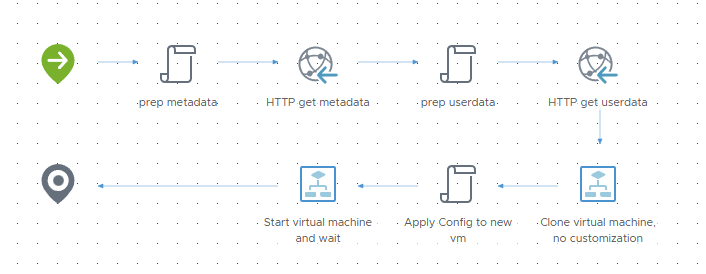
In Part 3 we´ll be finally deploying some VMs with a new designed workflow.
The automatic and unattended installation of virtual machines can be achieved with several techniques. In this series, I´ll show the approach of using CloudInit together with VMware Aria Automation Orchestrator. This will be realized by the use of Guest OS Customization of the specific VM.
In Part 2 we will focus on creating the necessary Guest OS Customization data.
Guest OS Customization
To use these Customizations we have to set Advanced Configuration parameters to each VM that should be deployed from your templates.
The automatic and unattended installation of virtual machines can be achieved with several techniques. In this series, I´ll show the approach of using CloudInit together with VMware Aria Automation Orchestrator. This will be realized by the use of Guest OS Customization of the specific VM.
First, we need to prepare a VM which will be used as a template later. To do so perform a basic installation of the OS and apply the changes for the specific OS and version. In this post the following linux distributions are covered.